FAQ's
Customer Services Portal [CSP] Is a Business Portal for Flash Direct Settlement Corporates on AVT to view their data of Flash related products and sales.
Access & Login
Q1: I forgot my password to log in
Select “Forgot your password?” below the login password form.
Enter your email address
Receive a verification pin
Complete resetting your password to log in.
Q2: It doesn’t open on my phone, the website is broken
It is built for desktop view only.
Q3: The website doesn’t load
If the CSP browser window has been open for a while, close it and reload the website.
Q4: I don’t have CSP access but I want to see the Remediation files
Please ask your colleagues who have access to give you access to CSP or view on their screen.
If the file is already downloaded, you can grab it from the FTP or mailbox.
Wallet & Balances
Q1: Why can’t I view all my trading accounts balances?
CSP is built with Direct Settlement accounts only, if you are indirect settlement for any trading accounts, the wallet is hidden and data cannot display at the moment.
Q2: How do I receive low balance alert emails?
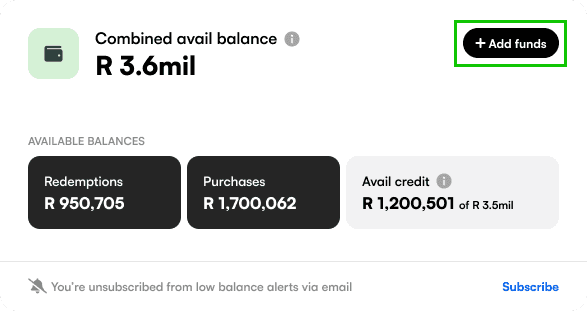
Select the « Subscribe » hyperlink below the wallet display to receive email alerts at 20% left, or 0% left from:
No credit limit: last deposit
Credit limit: warning of hitting your credit limit.

Q3: Where do I find my reference number and Auto Cash In Bank Details (To go live)
Top right of the Balance block, select the button called “Add Funds”, a popup will display to copy bank details, reference numbers and bank confirmation letter.
Q4: My Redemptions balance is in the negative, should it not be positive?
Thanks for bringing this up, please share a screenshot and we will investigate.
Q5: Where do I find my Purchase balance from a previous date in CSP? I need to finalise my books for my financial year end
The system only keeps a live, running balance, please share the specific date and time and developers will try look into the database if it is recorded.
Outages & Notifications
Q1: How do I know when AVT system goes down?
You will receive a no-reply email from Corporate Support informing you:
Planned maintenance/downtime: 24-48hours prior
Unplanned / emergency: as soon as possible.
Q2: Please add my colleague John to receive downtime alerts, he is not in CSP
Please supply your colleagues name and email address to add him onto the list.
Transactions & Search
Q1: I cannot find any transactions I input to search for, an error message display:
There are a few reasons for this:
Only use Flash serial or reference numbers provided to the Corporate through the API, not the Corporate’s created reference numbers.
No pins are accepted to be searched for
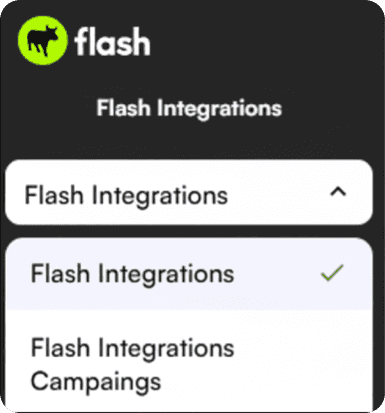
If you have multiple trading accounts, make sure to select the trading account the transaction was processed through in the left navigation bar:
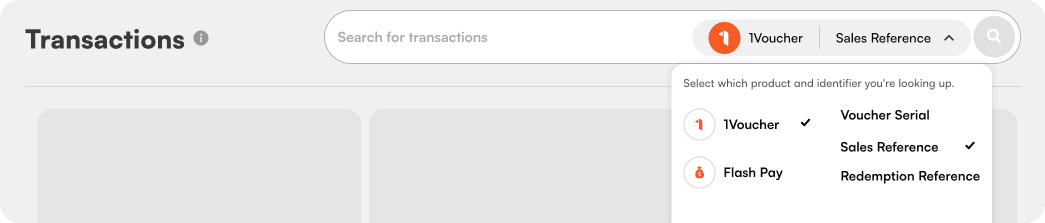
Select the correct option between Serial and Reference number
Select the correct end point.
Only search for V4 API transactions
Ensure there are no spaces or spelling mistakes
Q2: The transaction search bar does not allow file upload, I have a list of transactions.
You have to search manually 1 by 1 for risk and fraud purposes.
Q3: : I have searched and found my transaction, how do I cancel or redeem it?
There is no functionality to cancel or redeem the transaction in CSP, please contact Support.
Q4: Can I view the status of a 1Voucher Purchase to see if it has been redeemed?
Yes, it now displays if a transaction is active, or redeemed, and if redeemed, when. We do not display the redeemer’s name if it was not redeemed through you.


Q5: : I received no search results, but I am sure the transaction went through my v4Api?
There are three possibilities:
1. You must use the reference or serial that Flash Returns in the Api
2. Make sure you have selected the correct transaction type in the search dropdown.
Your Management Account could have multiple trading accounts. Make sure to select the trading account that the transaction went through in the left menu:
Reports & Reconciliation
Q1: How do I request today’s recon file?
You are able to select “Today’s file” in CSP. There is a sync collecting the request every 5 minutes to process the file, and drop it on either your FTP or mailbox as setup from Integrations.
Q2: Where do I find yesterday’s transaction file?
This should available in your FTP, it is not available in CSP. CSP only contains the option to download the recon file for today.
Q3: Why is there no balance column in the daily recon files? I need to finalise my accounts for audits
Transaction speeds can be faster than the balance updates, therefore the balance will never really be 100% accurate in the file, we have therefore removed the column to avoid confusion.
Turnover & Dashboard
Q1: Where do I find the turnover graph?
If you have the appropriate permissions, it is on the dashboard landing page.
Q2: The turnover graph is deceiving because it doesn’t take my expiries into account.
if you have expired transactions, you can select to filter by each transaction type one at a time to view on the turnover graph accordingly.
Remediation Files
Q1: : I need my Remediation File, where in CSP is it?
Navigate to Account Settings: Documents to download it there:
https://corporate.flash.co.za/account
It will be downloaded and sent to your FTP or mailbox as per your setup.
Q2: : Do I have to look every day for a new Remediation file?
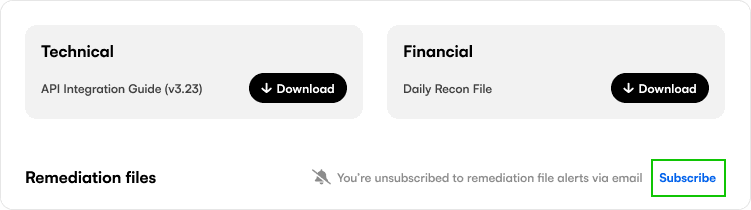
An easier way is to select to subscribe to email alerts, this will send you an email in the morning when a new file is available. (Always double check yourself in CSP when you can)
Q3: Stop sending me email alerts for remediation file
You can unsubscribe yourself by selecting to unsubscribe on the Accounts: Documents page - as shown above.
Q4: It says I cannot download the Remediation file
There is a limit of 5 downloads per day, to avoid too many of the same files in the folders. Please try again tomorrow.
It’s not the limit but an error state: ask for screenshot of the error, Share with Ty to log a ticket with tech.
Q5: I selected to download the Remediation file but I’m not receiving it
Please review the FTP or mailbox that you are setup with.
Please wait minimum 5 minutes, because requests as picked up every 5 minutes to process. It might take a few more minutes depending how big the file is.
Still not receiving: Escalate to integrations to assist with checking and escalate to tech.
Q6: I don’t have CSP access but I want to see the Remediation files
Please ask your colleagues who have access to give you access to CSP or view on their screen.
If the file is already downloaded, you can grab it from the FTP or mailbox.
Q7: How do I know which date the remediation file is for?
The date of the file is in the title.
Q8: How do I know which ones I have downloaded?
There is a column to display when the files were last downloaded
API & Integration & Troubleshooting
Q8: I have my own Support platform, instead of using CSP, do you have an API that I can connect with?
The API is in progress for 2026 – 2027.
Flash Group 2026 | All right reserved
Terms & Conditions
Privacy Policy
Cookie Policy
